How to Install an Expert Advisor on MT4 and MT5
Most “the EA is broken” reports are installation mistakes — wrong folder, file type, permission, or symbol — not a fault in the strategy logic. Our EAs ship as .ex4 for MT4 and .ex5 for MT5, in different data folders, covered below.
Prerequisites
- MetaTrader 4 or MetaTrader 5 installed
- An active trading account (we recommend XM for competitive spreads and unrestricted EA use)
- The EA file matching your platform, from our download page
Step-by-Step: Install and Configure the EA
Step 1: Download the File That Matches Your Platform
Every EA we publish ships in both builds — different binary formats, identical strategy logic. Downloading the wrong one is a common first mistake: an .ex5 dropped into an MT4 install never appears in Navigator, with no error explaining why. If you haven’t picked a platform yet, see our MT4 vs MT5 comparison for EAs — backtesting engine, hedging vs netting, and VPS resource use all differ between them.
Step 2: Open the Correct Data Folder
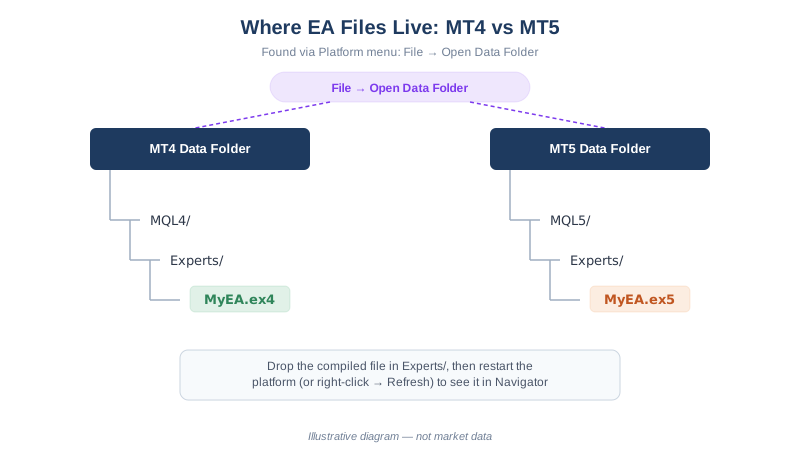
MT4 and MT5 store Expert Advisors in different locations, each installation with its own data folder:
- Open the platform (MT4 or MT5 — whichever you’re installing into)
- Click File → Open Data Folder
- Navigate to MQL4 → Experts (MT4) or MQL5 → Experts (MT5) — see the diagram above for both paths.
Running two installs (live and demo, say) means opening it from the wrong shortcut is a frequent reason an EA seems to vanish after installation.
Step 3: Copy the File Into Experts, Then Restart or Refresh
Copy the file directly into Experts — no subfolder, MetaTrader scans one level deep. Then restart the platform, or right-click Expert Advisors in Navigator and choose Refresh.
Step 4: Enable the Permissions MetaTrader Asks For
Several permissions gate real orders — some global, some per-EA. Each exists for a reason, and each breaks something specific when off:
| Setting | What it enables | Breaks without it | Security implication |
|---|---|---|---|
| Allow automated trading (toolbar) | Platform-wide switch letting any EA trade | No EA trades anywhere — signals compute, orders don’t send | None — plain on/off switch |
| Allow live trading (per-EA properties) | Trading for this EA/chart only | This EA logs signals but never sends an order | Low — scoped to one chart |
| Allow DLL imports | EA calling external Windows DLL functions, used for licence checks or math MQL can’t do natively | EAs needing a DLL fail to load or error on first call | High — a DLL runs with full access to your machine, outside MQL’s sandbox. Only enable for EAs you trust |
| Allow WebRequest for listed URL | Outbound HTTPS calls to whitelisted domains, e.g. licence verification | Calls fail silently, so gated features (our EnableAuth flag) never activate | Medium — scoped to listed domains, but sends account details to that server. Only whitelist domains you recognise |
For our EAs, enable all three under Tools → Options → Expert Advisors, adding https://api.steadypips.net to the WebRequest list.
Step 5: Attach the EA and Configure Inputs
Drag the EA from Navigator onto a chart for your intended pair and timeframe. Defaults are a starting point, not a recommendation for your account size. SteadyPips: RiskPercent (2.0), MaxTrades (3), EnableAuth (true). GridMaster: GridSizePips (20), StartLotSize (0.01), MaxDrawdownPercent (20) — the cutoff that closes the grid if drawdown breaches that level.
Step 6: Confirm It’s Running
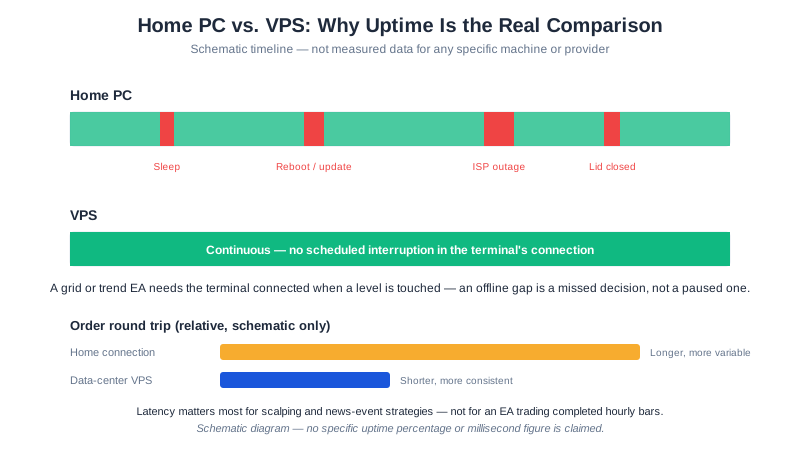
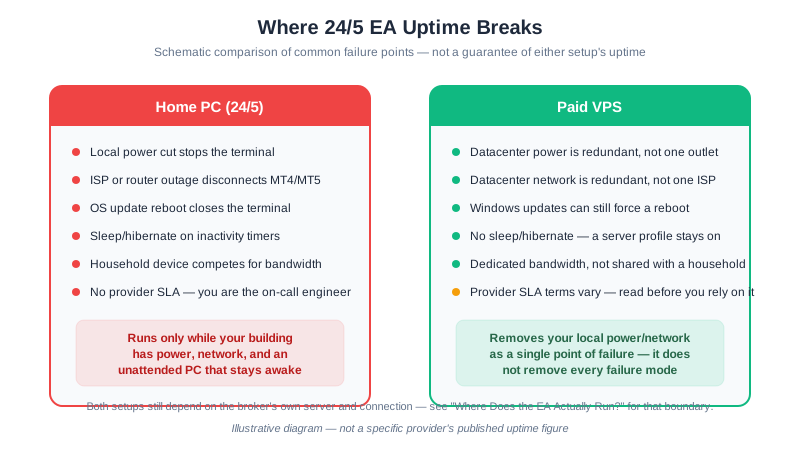
Look for the smiley face in the chart’s corner. A frowning face or no face means AutoTrading is off somewhere — check both the toolbar and the per-EA checkbox. The Experts tab logs every action and error; check it first when something looks wrong. On MT5 specifically, also check the account’s hedging vs netting mode (Tools → Options → Trade) if the EA opens fewer positions than expected — a netting account merges same-symbol positions instead of stacking them, which some multi-entry strategies rely on. Because the EA runs inside your terminal, not on the broker’s server, a VPS keeps it active when your computer sleeps or disconnects.
Installation Mistakes That Look Like EA Bugs — and What the Experts Tab Says
Most “the EA doesn’t work” reports are one of these, not a fault in the strategy logic. The Experts tab logs standard MQL trade-server codes for the last four rows:
| Symptom | Real cause | Fix |
|---|---|---|
| Copied fine, never appears in Navigator | Wrong data folder (more than one MT4/MT5 install — live + demo, two brokers), or it’s .mq4/.mq5 source rather than compiled .ex4/.ex5 | Reopen Open Data Folder from the exact shortcut you launch; confirm the file is the compiled type; refresh Navigator |
| Smiley face shows, nothing ever trades, nothing logged | AutoTrading off (toolbar or per-EA), market closed, wrong timeframe, or symbol suffix mismatch (EURUSD vs EURUSD.a) | Check both AutoTrading switches, confirm the market is open, the chart period matches what the EA was built for, and Market Watch’s exact symbol name |
| “Invalid stops” (error 130) | Stop loss/take profit closer than the broker’s minimum stop level | Check the symbol’s stop level in Market Watch properties; widen the stop multiplier |
| “Not enough money” (error 134) | Calculated lot size needs more margin than the account holds | Lower risk % or lot size, or raise deposit/leverage |
| “Invalid trade volume” (error 131) | Lot size outside the symbol’s minimum, maximum, or step | Round to the symbol’s volume step (often 0.01) |
| “Trade context busy” (error 146) | Another order request is still processing | Wait a tick and retry; avoid stacking several EAs on one symbol |
Frequently Asked Questions
Why doesn’t my EA show up in the Navigator panel after I copied the file?
Usually the wrong terminal’s data folder (with more than one MT4/MT5 install), a .mq4/.mq5 source file instead of the compiled .ex4/.ex5, or a missing refresh. See the table above for the fix.
What is the difference between .ex4/.ex5 and .mq4/.mq5?
Source versus compiled binary. MetaTrader loads and runs only the compiled file; Navigator doesn’t list source files at all, so vendors distribute the compiled form and you never touch MetaEditor.
Why does MetaTrader ask to allow DLL imports, and is it safe to enable?
It lets the EA call external Windows library functions, used for licence checks or math MQL can’t do natively. It’s broad — a DLL runs with full access to your machine, outside MQL’s sandbox — so only enable it for EAs from a source you trust.
The smiley face is showing and the EA is attached, but no trades open. What’s wrong?
Market closed, wrong timeframe, symbol suffix mismatch (EURUSD vs EURUSD.a), or the EA’s own “Allow live trading” checkbox unticked — see the symptom table above for which.
Keep Learning
- What Is a Forex Expert Advisor? — what an EA does before you install one
- VPS for Forex Trading — keeping the EA running after installation
- Demo Account Guide — testing the install before going live
- Your EA’s First Trade Checklist — the pre-flight steps after installing
Affiliate Disclosure: Links to XM are affiliate links. We receive a commission at no cost to you. Full disclosure
Risk Warning: Automated trading involves risk. Past EA performance does not guarantee future results. Never trade with money you cannot afford to lose.